How I configured deep linking for our system
Two months ago, I received a ticket about configuring deep linking for our system. At first glance it seemed hard: I needed to research what it actually was, how it worked, and how to collaborate with our mobile team to get it done.
What is deep linking?
Let's look at the diagram shown below:
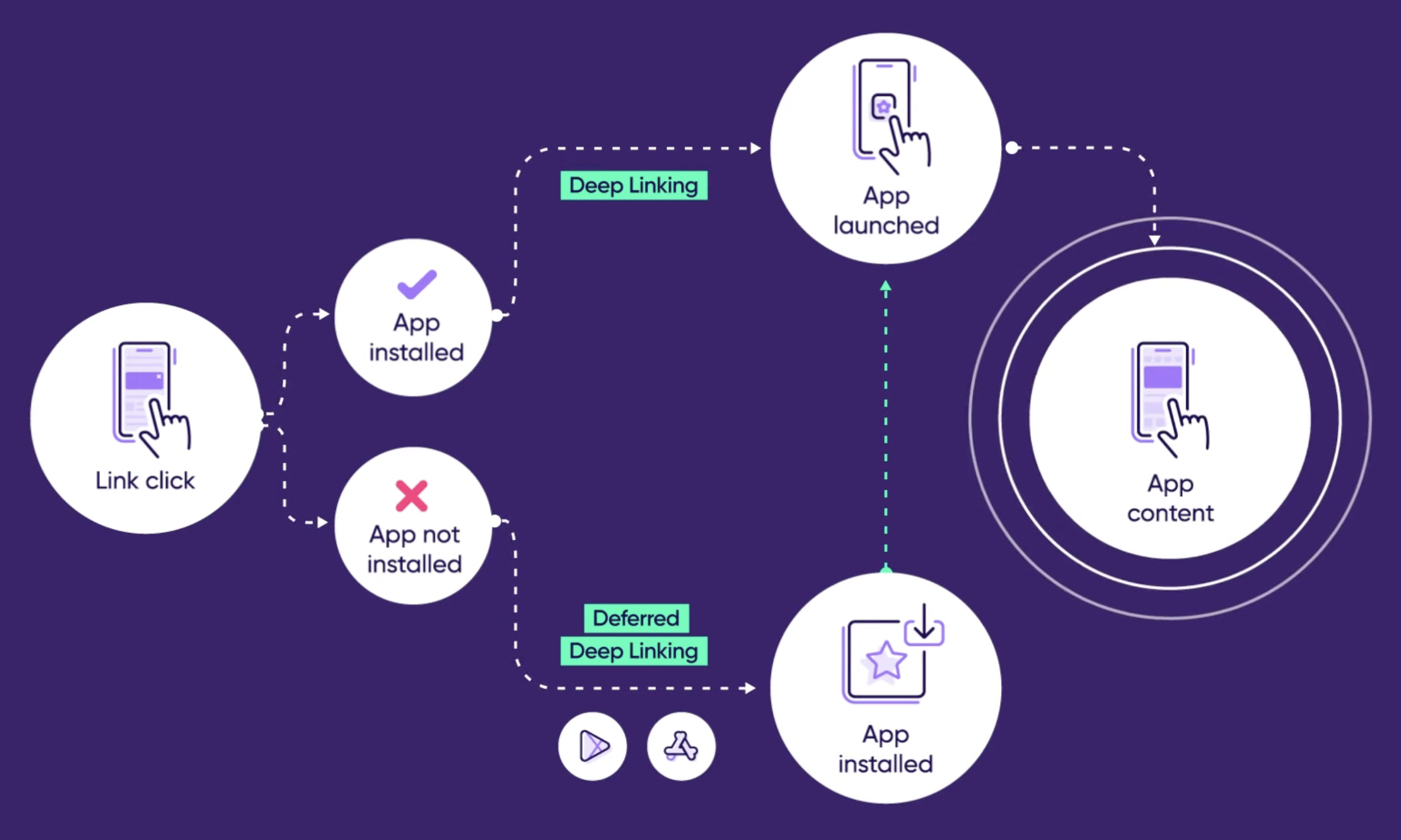
End-to-end flow of a deep link click. Source: Appsflyer
When you click a deep link, if the app is already installed, it automatically redirects you to the content inside the app. Otherwise, deferred deep linking comes into play — it redirects you to the App Store or Google Play. Once the app is installed, it launches and takes you straight to the content.
Anatomy of a deep link
Now that we've walked through the overall picture, let's slow down and look at what a deep link looks like — what we actually click. In mobile development, a deep link typically comes in two flavors:
1. Custom scheme (URL scheme)
Its format is custom_scheme://something/path, for instance myapp://product/123. The app needs to declare this scheme in the Manifest (Android) or Info.plist (iOS) to handle it.
The downside is there's no natural fallback if the app isn't installed. On the web, you also can't click directly on a scheme:// link — it usually needs an http/https link as an intermediary.
2. Universal Links (iOS) / App Links (Android)
Just a normal https URL, for example https://mybasket.com/product/123. When you click it, if the app isn't installed, it takes you to the website instead.
The obvious advantage is that it's a standard link — easy to share, has a natural fallback, and works well for SEO, marketing, and advertising.
In system design, a lot of products use both approaches:
- Custom schemes for internal navigation, push notifications, or app-to-app integration.
- Universal / App Links for websites, social sharing, and advertising.
The ticket: designing the redirect page
The ticket requirement was to design a page that displays basic information about the product, along with two action buttons: Open in app and Continue in browser. Here's what the page looks like:
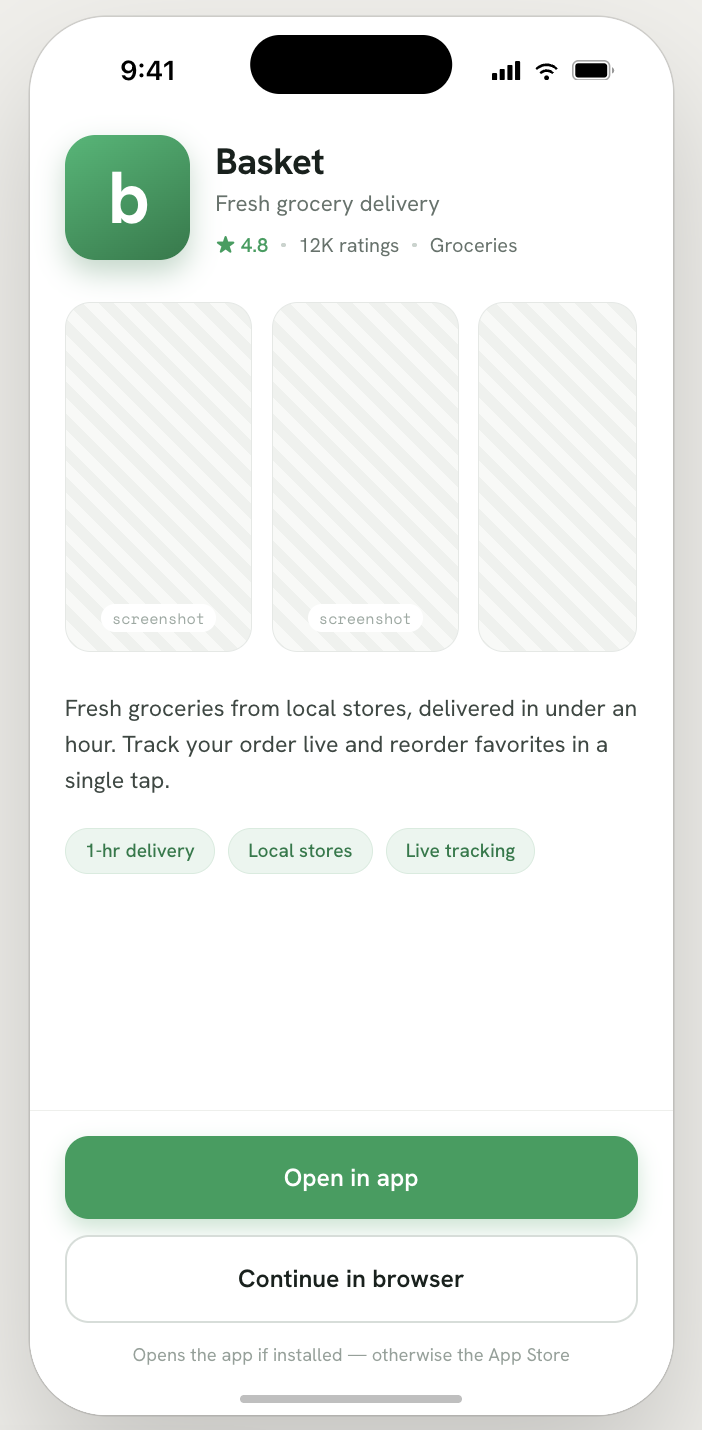
Device detection
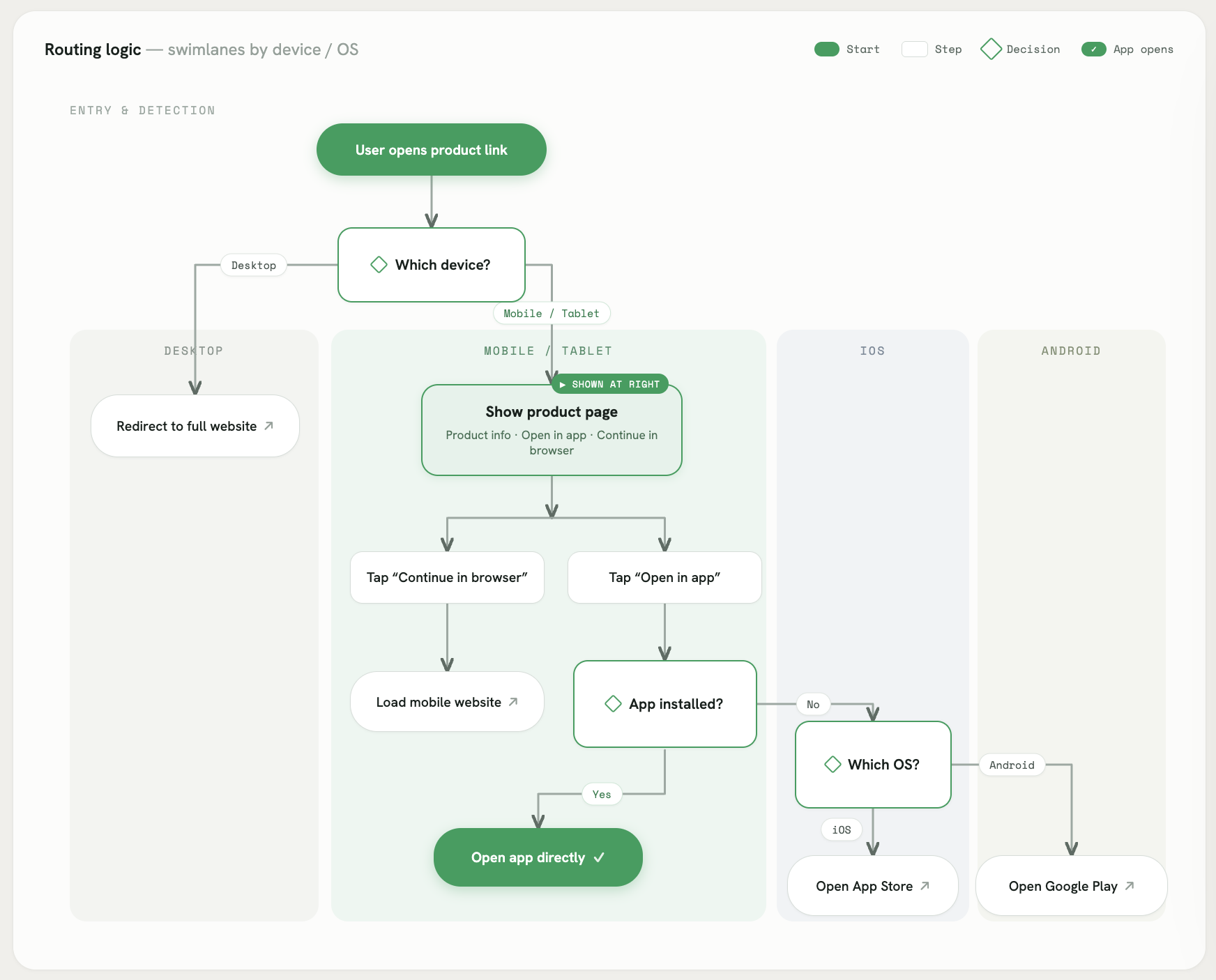
When a user visits this page, it should detect what device the user is on:
- Mobile or tablet → show the page described above.
- Desktop → redirect straight to the website.
Open in app
There are only two cases: the app is either installed or not.
- Installed → open the app directly.
- Not installed → redirect the user to the App Store or Google Play, based on their OS.
Continue in browser
Just the normal mobile website — no special handling needed. To better understand the routing logic, I used Claude to create the following diagram:
Case study
The requirement above breaks down into a chain of questions, and each answer unlocks the next. Let's walk through them one by one.
1. Which device is the user on?
The first question is the gatekeeper of every branch below it: if the user is on desktop, we redirect to the website and stop; if mobile or tablet, we render the redirect page. So, how do we know?
You can access it by typing navigator.userAgent into the Console tab of DevTools, and it will print the value. You can also find it under the Network tab, inside Request Headers. Here's an example from my own machine:
Mozilla/5.0 (Macintosh; Intel Mac OS X 10_15_7) AppleWebKit/537.36
(KHTML, like Gecko) Chrome/149.0.0.0 Safari/537.36 Edg/149.0.0.0
With that string, we can regex-match keywords for a specific platform to figure out where the user is:
type Platform = "ios" | "android" | "desktop"

function detectPlatform(): Platform {
  const ua = navigator.userAgent
  if (/iPhone|iPad|iPod/i.test(ua)) return "ios"
  if (/Android/i.test(ua)) return "android"
  return "desktop"
}
Anyway, back to our problem — we need to guess the user's OS to redirect them to the correct app store. I still had to rely on UA sniffing here. There's simply no official API that reliably tells you which OS a user is on.
2. How to configure the deep link?
Once we know the user is on mobile, the next question is: how does clicking Open in app actually launch the app? This is where the FE side and the mobile side meet.
Our mobile developer handled the app-side setup. He asked me: "Can you host these two files — assetlinks.json and apple-app-site-association? This allows the operating system to verify that the website and the mobile app belong to the same owner."
Behind the scenes, he generated each file by following the official documentation from Google and Apple. Although the two platforms use different formats, both files contain metadata that identifies the mobile application they are associated with.
For Android, the assetlinks.json file includes the application's package name and the SHA-256 fingerprint of the app signing certificate.
[
  {
    "relation": ["delegate_permission/common.handle_all_urls"],
    "target": {
      "namespace": "android_app",
      "package_name": "com.example.myapp",
      "sha256_cert_fingerprints": [
        "12:34:56:78:90:AB:CD:EF:12:34:56:78:90:AB:CD:EF:12:34:56:78:90:AB:CD:EF:12:34:56:78:90:AB:CD:EF"
      ]
    }
  }
]
| Field | Description |
|---|---|
package_name | The Android app's package name. |
sha256_cert_fingerprints | SHA-256 fingerprint of the certificate used to sign the app. |
relation | The permission granted from the website to the app — most commonly delegate_permission/common.handle_all_urls. |
The apple-app-site-association file serves the same purpose for iOS. Instead of a package name and certificate fingerprint, it specifies the Apple Team ID, the app's Bundle ID, and the URL paths that should be handled by the app.
{
  "applinks": {
    "details": [
      {
        "appIDs": ["ABCD123456.com.example.myapp"],
        "components": [
          { "/": "/products/*",
            "comment": "Matches /products/Y7FS7S"
          },
          { "/": "/profile/*",
            "comment": "Matches /profile/lam"
          }
        ]
      }
    ]
  }
}
| Field | Description |
|---|---|
appIDs | An array of TeamID.BundleID values (e.g. ABCD123456.com.example.myapp) — supports multiple app variants under one Team ID. |
components | The URL paths that should be opened by the app, expressed as an array of path-matching objects. |
Before Android or iOS trusts your app to open links from your website, it first needs to verify that the website actually belongs to the app. To do that, both operating systems look for a verification file at a predefined location on your domain:
- Android → https://mybasket.com/.well-known/assetlinks.json
- iOS → https://mybasket.com/.well-known/apple-app-site-association
On the FE side, my job was simply to make sure these two URLs return the right content. In a Next.js project, anything placed inside the public/ folder is served as a static asset from the site root — so dropping the files into public/.well-known/ is enough to expose them at the exact paths above.
To make sure everything is wired up correctly, you can verify with the official guide for Android App Links, and a widely used third-party tool like Branch's AASA Validator for iOS. Once the two files are live and reachable, the mobile side can finish claiming the domain, and the Open in app button on the redirect page finally does what its name promises.
3. What is the behavior of the "Open in app" button?
Now that the configuration and hosting are in place, tapping a link inside apps like iMessage, Notes, Mail, Slack, or Gmail already opens the app on install — or falls back to the website. The remaining piece is the Open in app button on the redirect page itself.
I confidently implemented its behavior with this handler:
const handleOpenInApp = useCallback(() => {
  window.location.href = `https://mybasket.com/product/${productId}`
}, [productId])
That covers the happy path. My approach for the case when the app isn't installed is to fire the redirect, then wait 2–2.5 seconds. If the app takes over, the browser tab is backgrounded and the timer never runs — a nice built-in cancellation. If nothing happens within the window, we assume the app isn't there and send the user to the store.
Everything worked across browsers — except Safari. Even when the app was installed, tapping Open in app did nothing. After some digging, I found the root cause from Apple's documentation:
When a user browses your website in Safari and taps a universal link in the same domain, the system opens that link in Safari, respecting the user’s most likely intent to continue within the browser. If the user taps a universal link in a different domain, the system opens the link in your app.
So how do we fix it?
4. Fixing the Safari edge case
There are two approaches I considered:
- Fall back to a custom scheme (e.g.
mybasket://product/123) when the user is on Safari. - Introduce a bridge domain — a subdomain that hosts the same
assetlinks.jsonandapple-app-site-associationfiles, and acts as the middleman between the redirect page and the app.
I went with approach 2 because it's the cleanest fit for the constraint Apple imposed.
-
Why not the custom scheme? Safari treats custom schemes as untrusted: if the app isn't installed, it surfaces a native dialog — "Safari cannot open the page because the address is invalid." — which is confusing for users. On top of that, the fallback logic to the App Store gets messy fast.
-
Why the bridge domain works. The idea leans directly on the rule Apple stated in the quote above: "If the user taps a universal link in a different domain, the system opens the link in your app." So instead of redirecting to the same domain (
mybasket.com), the Open in app button redirects to a subdomain likeapp.mybasket.com. Safari sees a different hostname, hands off to the app, and we're done.
For this to work, the bridge domain must also claim the app — meaning it hosts its own copy of both verification files:
https://app.mybasket.com/.well-known/assetlinks.jsonhttps://app.mybasket.com/.well-known/apple-app-site-association
The button handler becomes a one-liner:
const BRIDGE_HOSTNAME = "app.mybasket.com"

const handleOpenInApp = useCallback(() => {
  window.location.href = `https://${BRIDGE_HOSTNAME}/product/${productId}`
}, [productId])
Now the elegant part: if the user actually reaches the bridge page in the browser, we know for certain the app isn't installed. Otherwise the OS would have intercepted the URL before Safari ever rendered anything. That removes the whole timer race — we just need to show a short "Redirecting…" state and send them to the store.
const APP_STORE_URL = "https://apps.apple.com/app/mybasket/[APP_ID]"
const PLAY_STORE_URL = "https://play.google.com/store/apps/details?id=com.mybasket"
const BRIDGE_REDIRECT_DELAY_MS = 1500

function useIsBridgeDomain(): boolean {
  // Read window.location safely across SSR and CSR, without a hydration flash.
  return useSyncExternalStore(
    () => () => {}, // no subscription — hostname never changes within a tab
    () => window.location.hostname === BRIDGE_HOSTNAME, // client value
    () => false, // SSR fallback (no window on the server)
  )
}

useEffect(() => {
  if (!isBridgeDomain) return

  const storeUrl = platform === "ios" ? APP_STORE_URL : PLAY_STORE_URL
  const timer = setTimeout(() => {
    window.location.href = storeUrl
  }, BRIDGE_REDIRECT_DELAY_MS)

  return () => clearTimeout(timer)
}, [isBridgeDomain, platform])
And the render is trivial — a loading screen while the redirect fires:
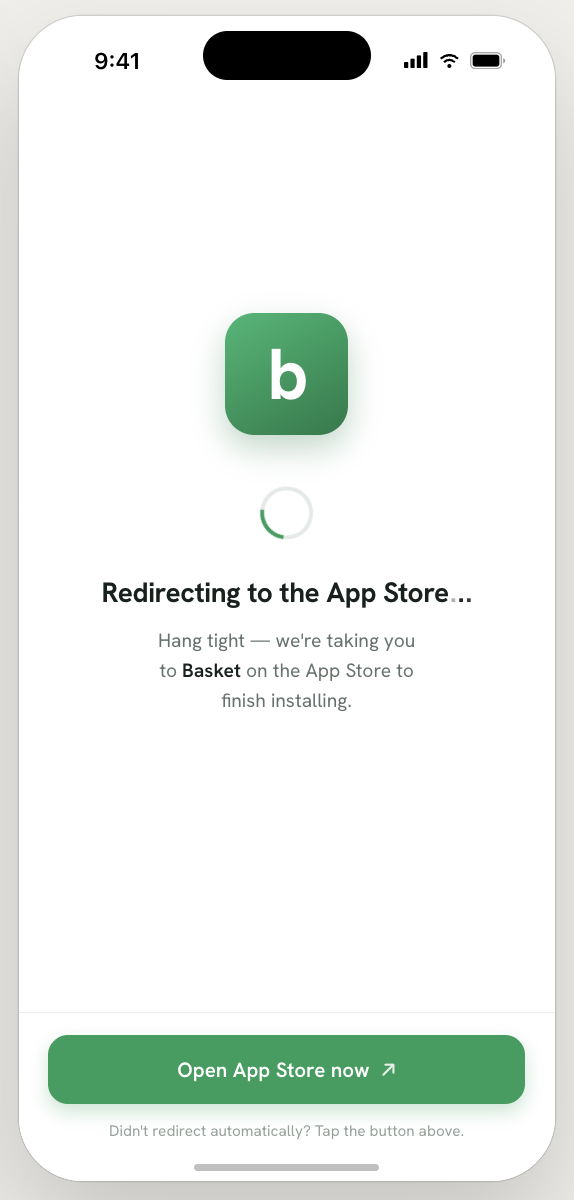
What the user sees on the bridge domain — a brief interstitial before landing on the App Store.
Conclusion
With solid docs from Google and Apple, an AI assistant, and a collaborative mobile teammate, the ticket shipped and went live. The Safari edge case was the moment the ticket turned into a real engineering problem — find the root cause, weigh the trade-offs, commit to the approach that fits the constraint. That's almost always where the interesting part hides.